Auto-import bank transactions on iOS
iOS doesn’t let apps read SMS directly the way Android does, so Spencio ships a "Process Bank Message" Shortcuts action instead. Build a one-time automation and Spencio picks up bank messages in the background, no need to forward or paste anything.
Start a new shortcut
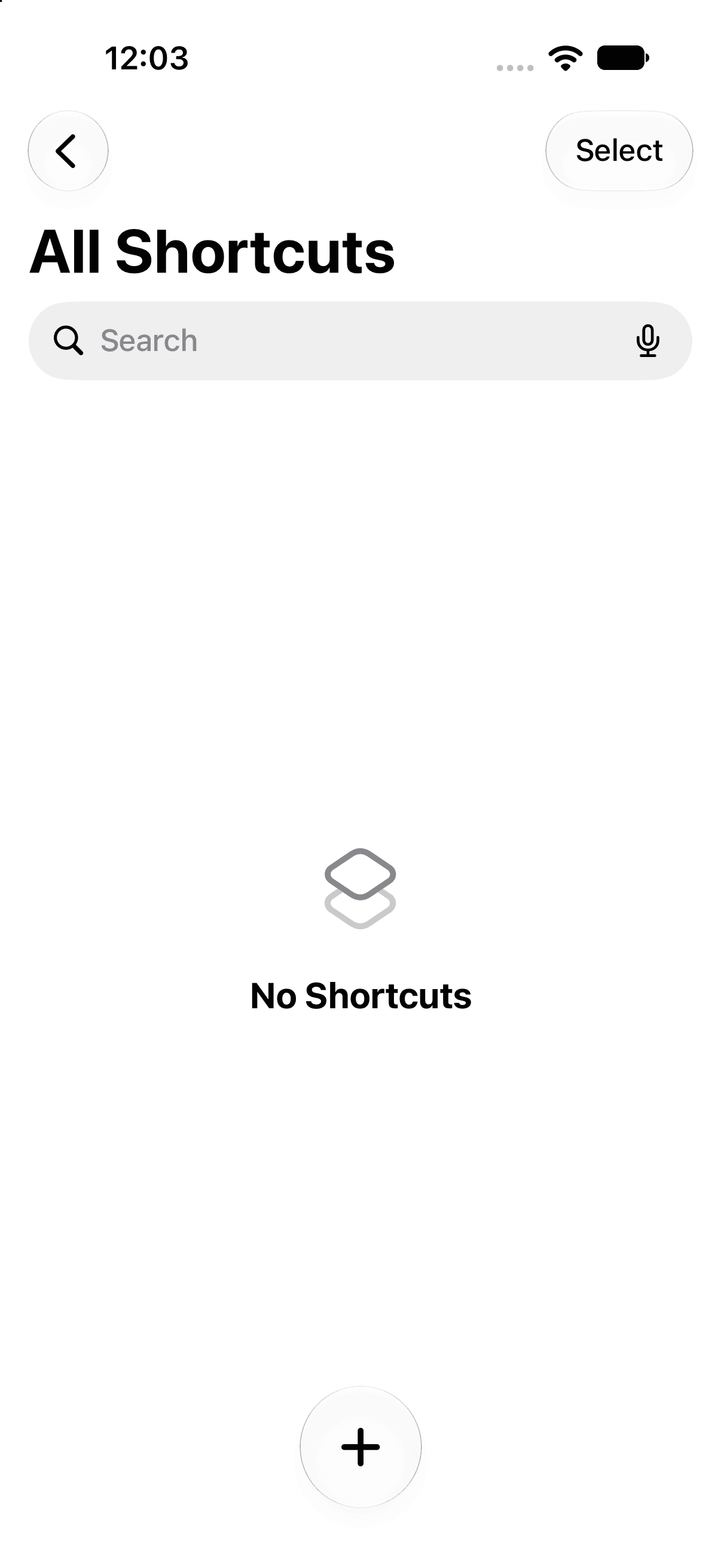
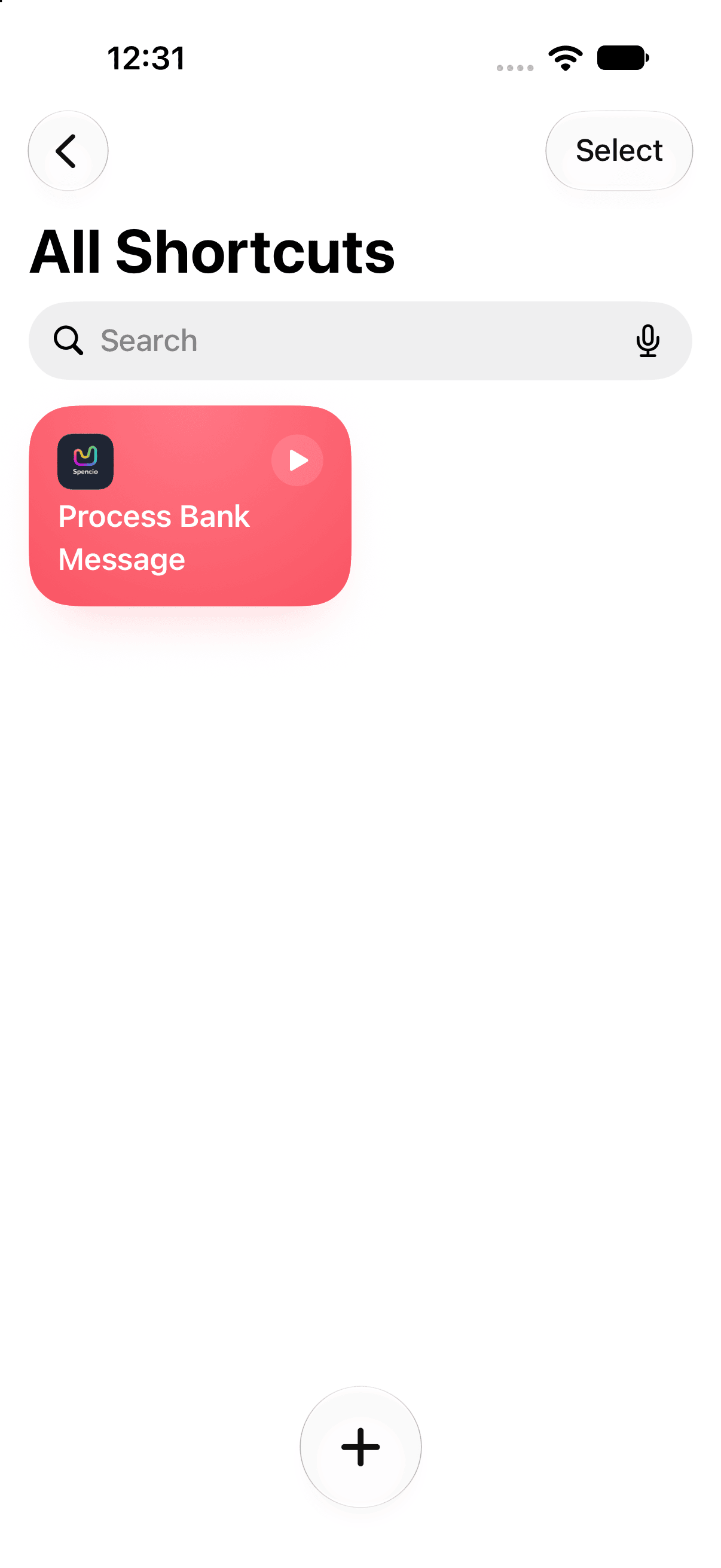
Open the Shortcuts app and tap the "+" on the All Shortcuts tab. In the current Shortcuts app, an automation is just a shortcut with a trigger attached, so this is also how automations start.
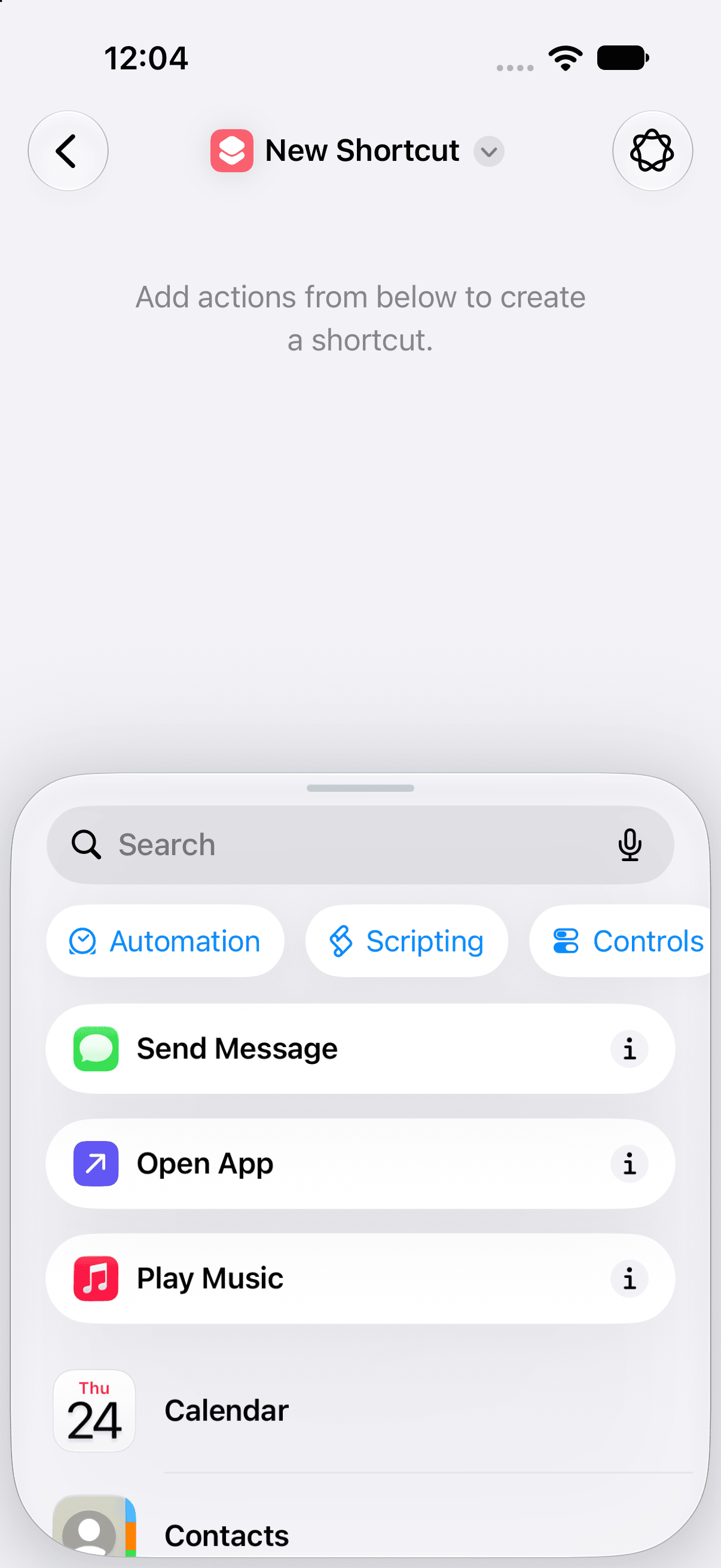
- 1Open Shortcuts → All Shortcuts → tap "+".
- 2A new shortcut opens in the AI-assisted "Describe a shortcut" composer — tap "Edit" in the top-right for the ordinary action library instead.
Pick the Message trigger
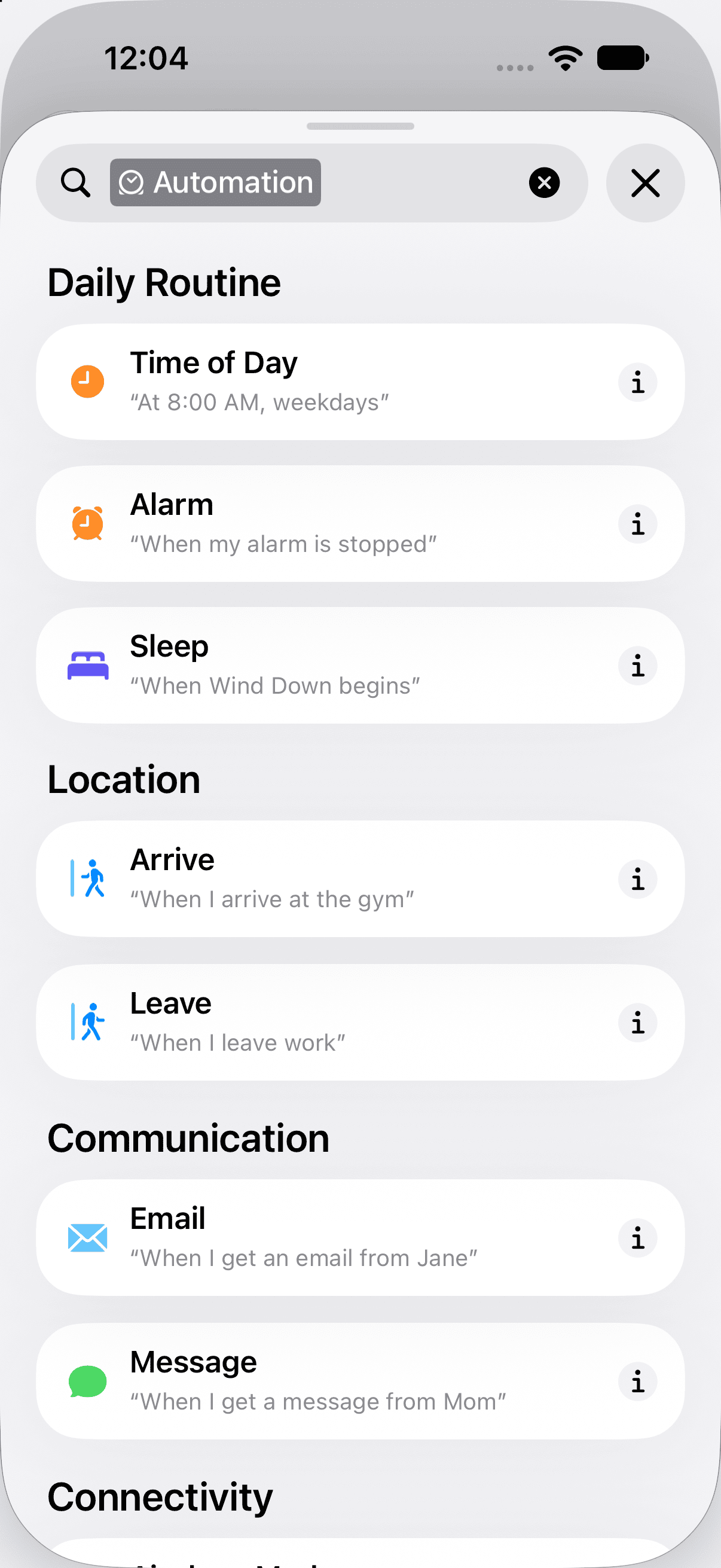
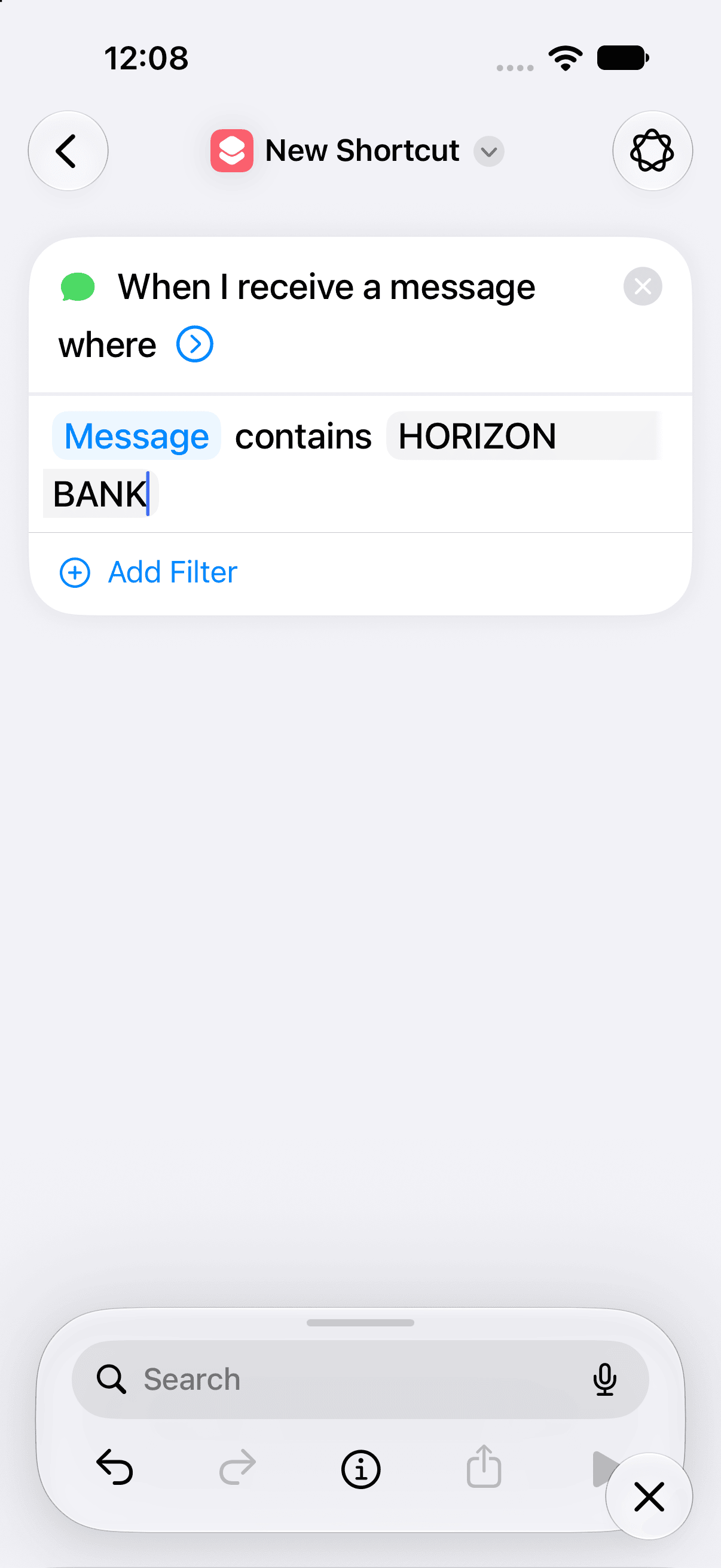
In the action library, tap the "Automation" category, then "Message" under Communication. Switch its filter from Sender to Message, set it to "contains", and type text your bank's SMS always includes.
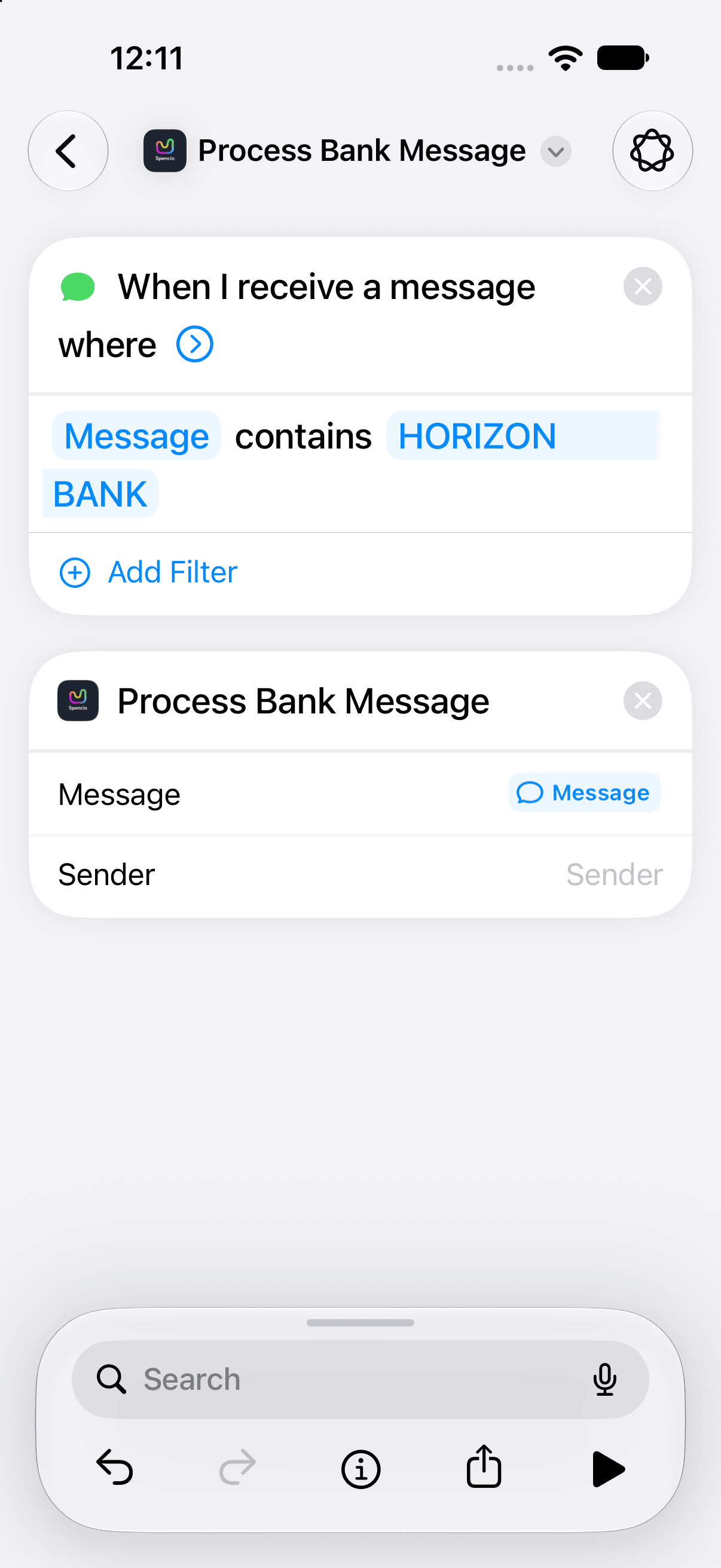
- 1Automation → Message adds "When I receive a message where…" as the trigger.
- 2Tap the filter, switch it to Message → contains, then enter your bank's name or sender ID.
Add Spencio's action
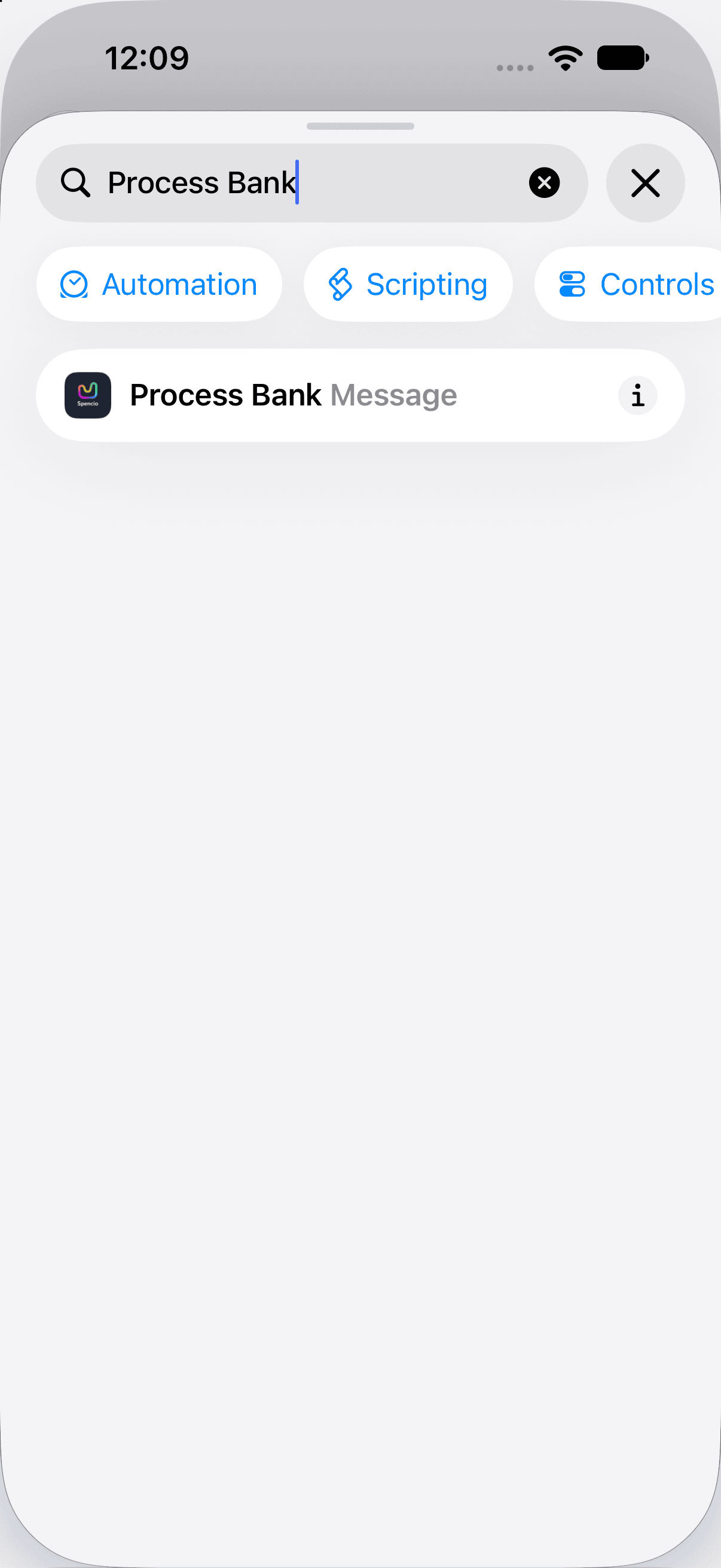
Search the action library for "Process Bank Message" — Spencio's own action, shown with the app icon — then connect the trigger's message text to it.
- 1Search for "Process Bank Message" and tap it to add it right after the trigger.
- 2Tap its Message field → "Select Variable" → choose "Message" (the trigger's incoming text). Sender is optional.
Save it, then turn it on in Spencio
Back out and the automation saves itself — it runs silently whenever a matching message arrives, no confirmation prompt. Then flip the switch on Spencio's side.
- 1Tap the back arrow — the shortcut is now also a standing automation.
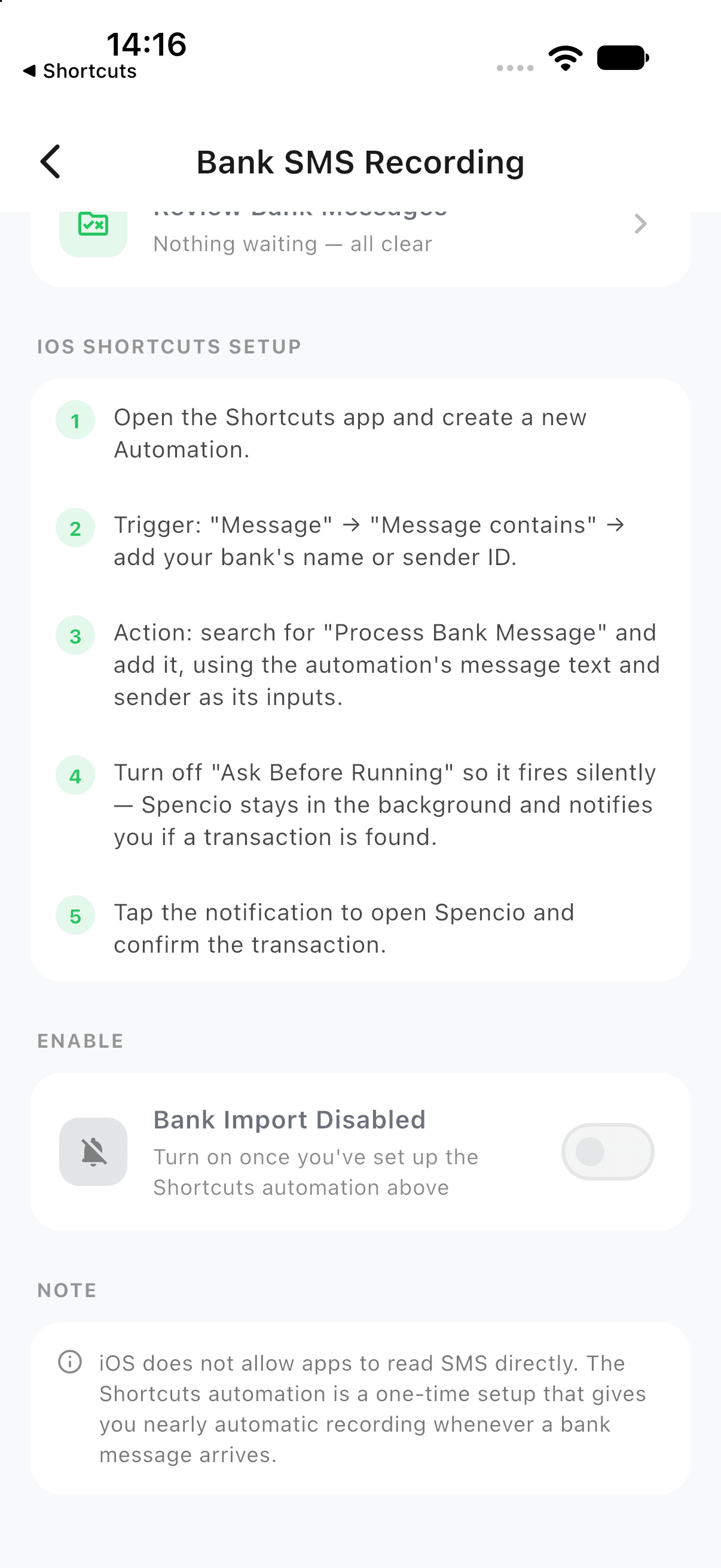
- 2In Spencio: Settings → "iOS Shortcuts setup guide" → set a default account → turn on "Bank Import Enabled".
Ready to try it yourself?
Spencio is free to download on iOS and Android — Bank SMS Automation is included with Spencio Premium.