← All guides
🥧
BudgetsSet limits, watch progress in real time
Budgets attach a spending limit to a category and period. As you log expenses, the progress bar and status label update instantly — On track, Warning, or Over — so you know where you stand before it’s too late.
Guide 7 of 11
Overview
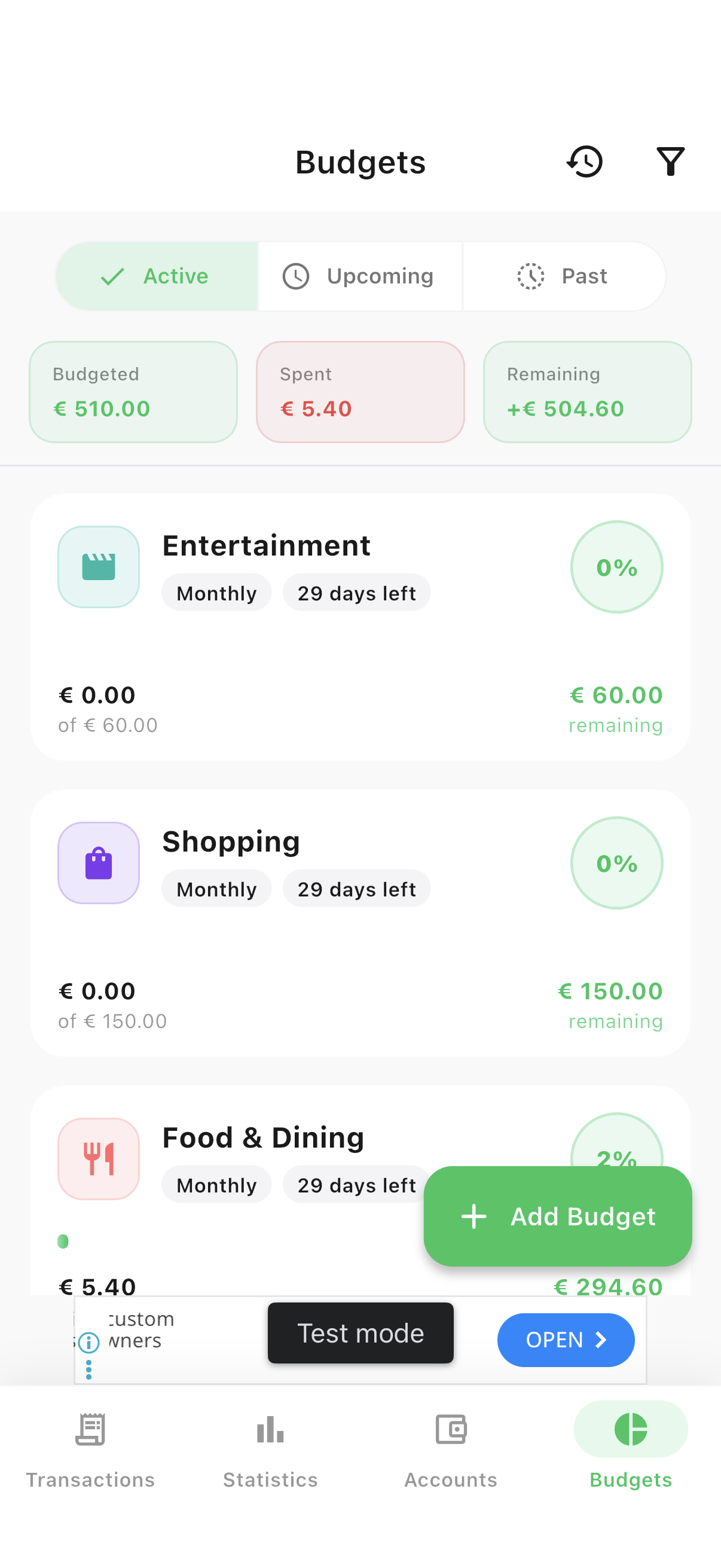
Every budget, with live status
Budgets that are close to or over their limit are called out with a colored banner right on the card.
- 1Open the Budgets tab to see every active budget with its progress bar and status.
Detail
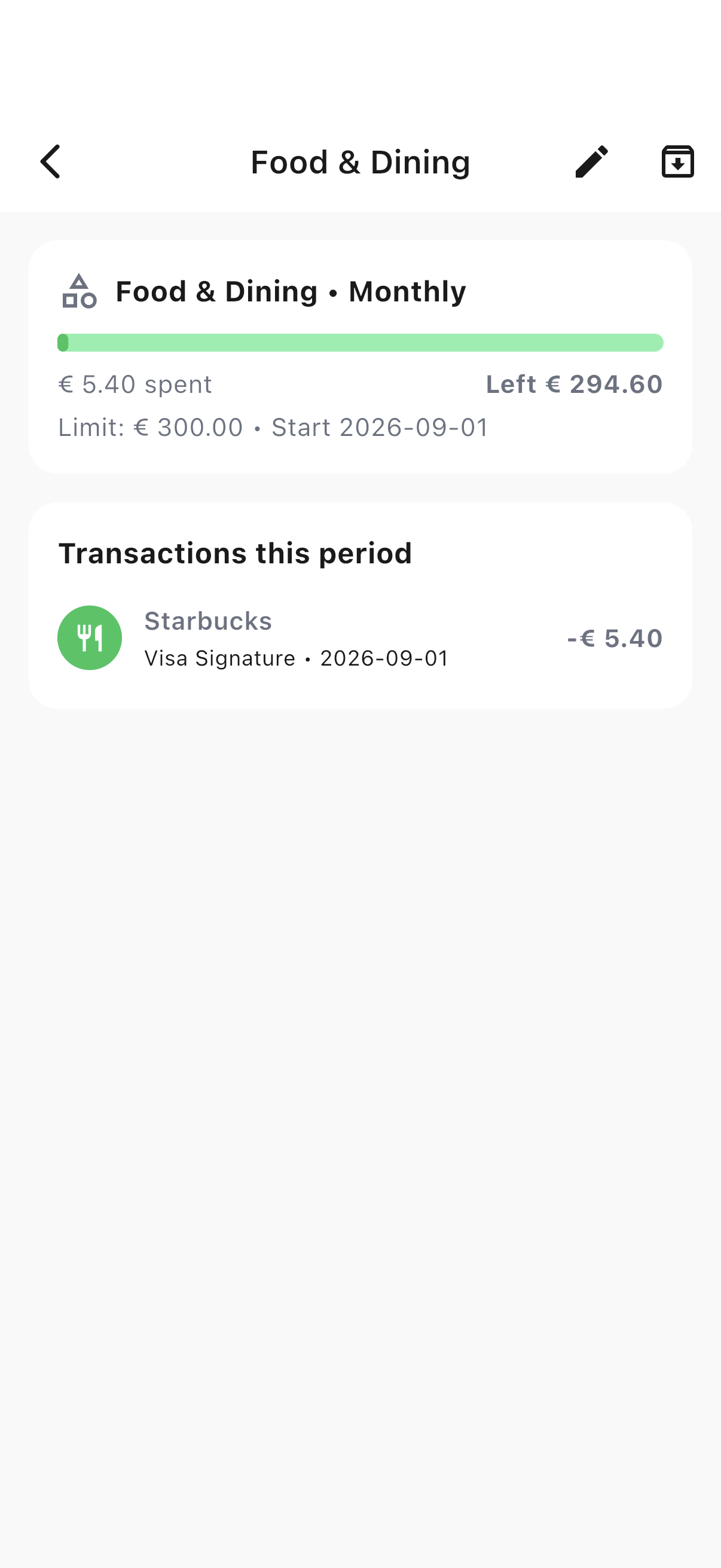
See exactly what’s counted against it
A budget’s detail page breaks down every transaction contributing to its total for the period.
- 1Tap a budget card to see the transactions counted against it.
Add
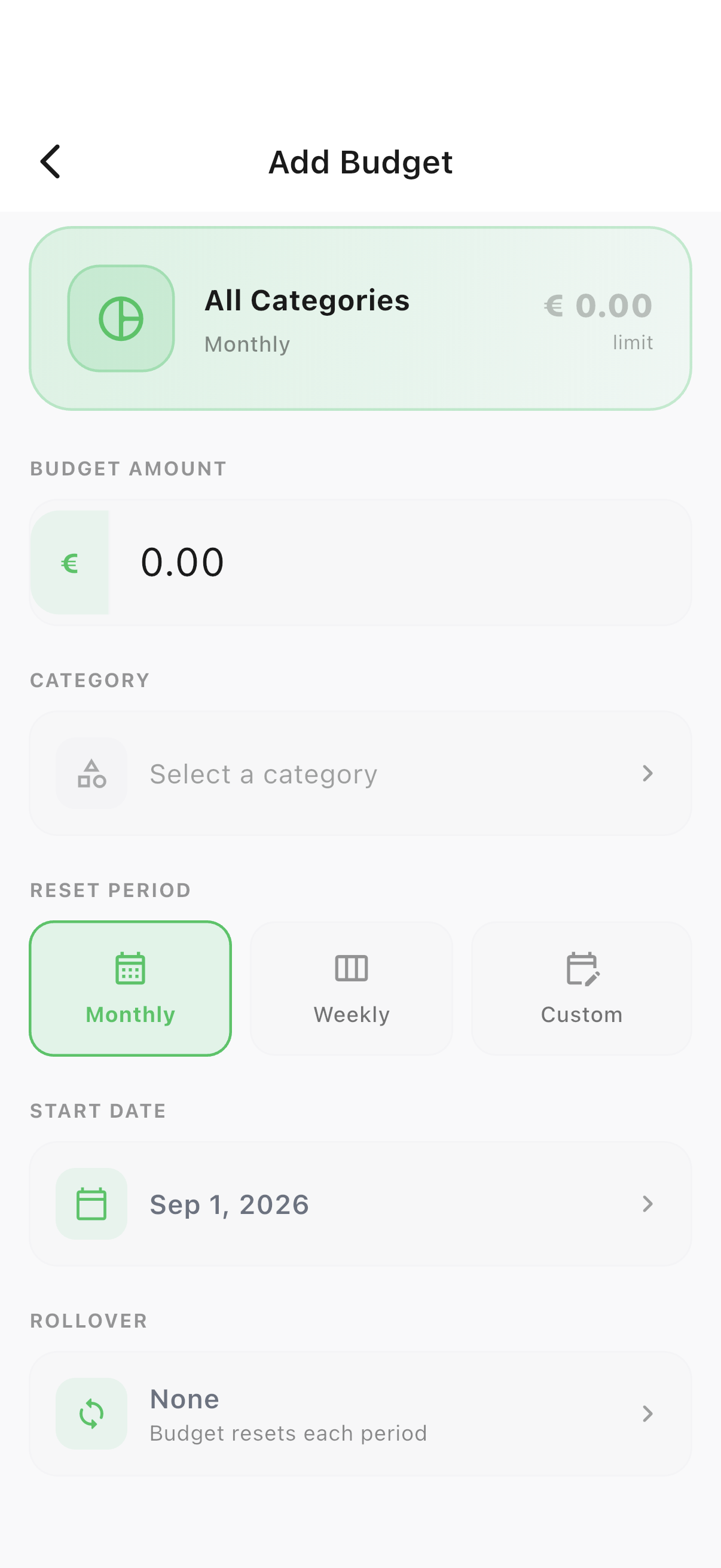
Set a new budget
Budgets can run Monthly, Weekly, Quarterly or Annual, with optional rollover for unspent amounts.
- 1Tap the + button on the Budgets tab.
- 2Pick a category, set the limit and period, and optionally enable rollover.
Ready to try it yourself?
Spencio is free to download on iOS and Android — every feature in this guide is included.