← All guides
🐷
GoalsSave toward something specific
Savings Goals lets you name a target — an emergency fund, a trip, a new laptop — and link it to one of your accounts. Progress tracks that account’s balance against your target automatically.
Guide 6 of 11
Overview
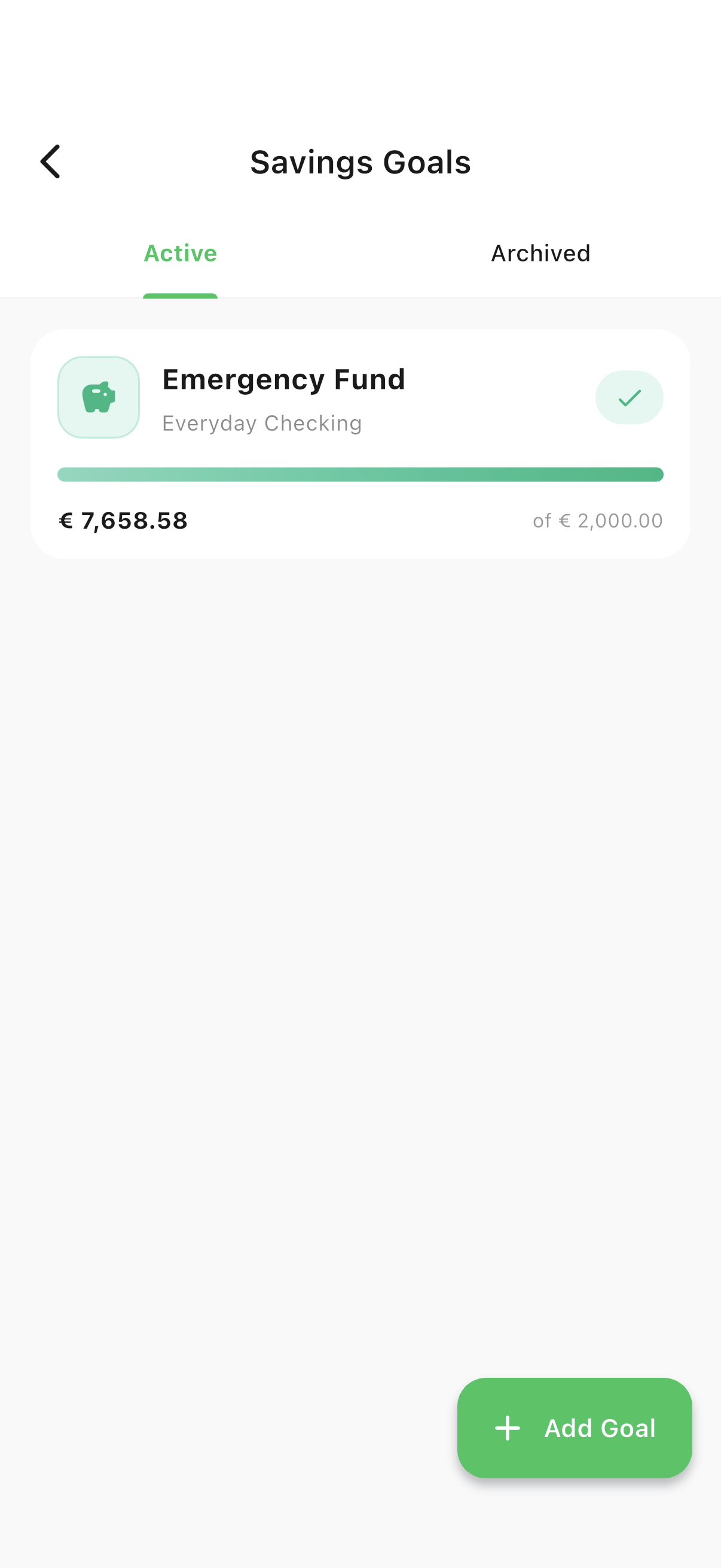
Every goal, with live progress
Reach Savings Goals from the Accounts app bar (the piggy-bank icon) or from the menu.
- 1Open Accounts, then tap the piggy-bank icon — or open Savings Goals from the ☰ menu.
- 2Switch between Active and Archived goals with the tabs at the top.
Detail
Progress follows the linked account
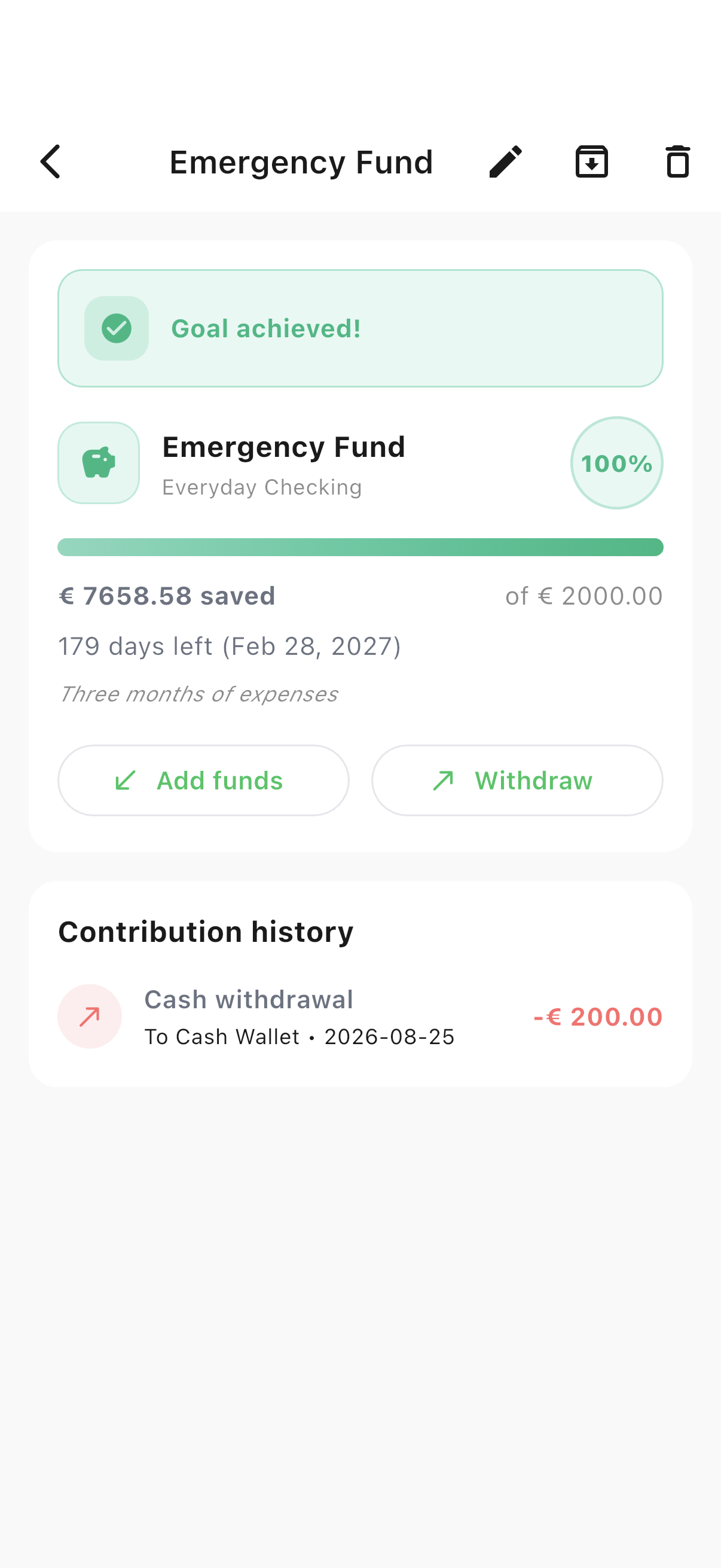
A goal’s progress bar is its linked account’s balance measured against the target — not a separate isolated jar, so any transaction on that account moves the needle.
- 1Tap a goal to see its progress, target date, and full contribution history.
Fund
Add funds or withdraw
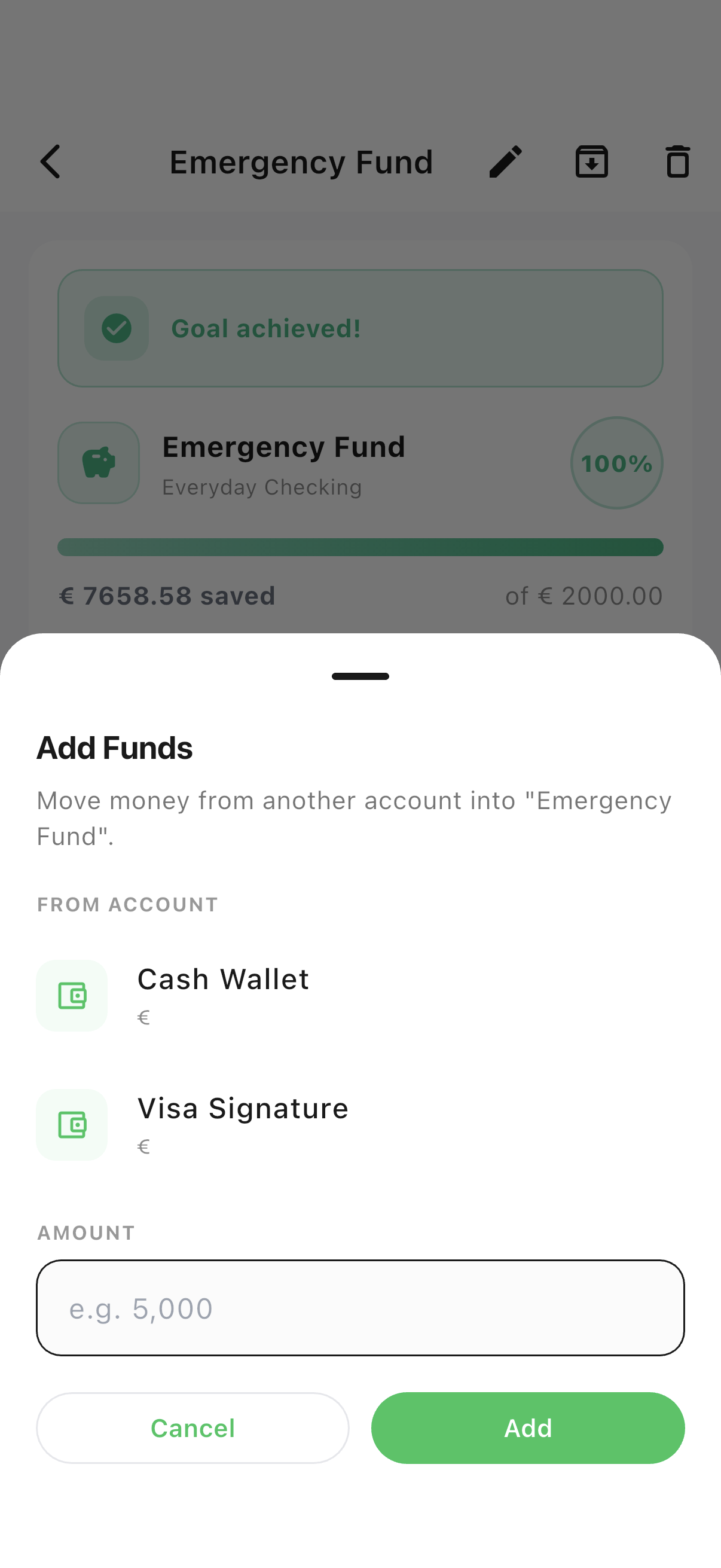
Both actions record a real transaction against the linked account — this isn’t just a label, it moves money.
- 1From a goal’s detail page, tap "Add funds" or "Withdraw" and enter an amount.
Add
Create a new goal
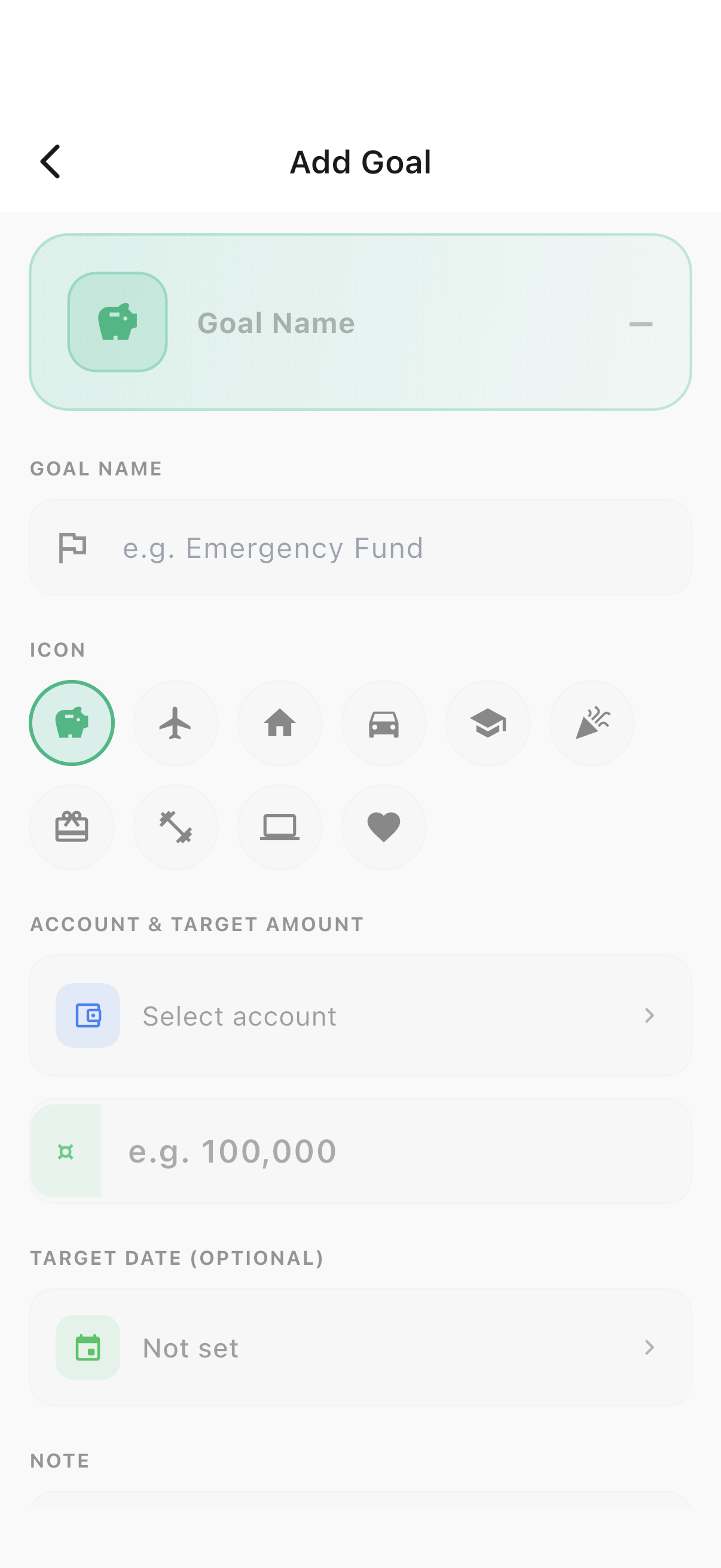
Every goal needs a name, a linked account, and a target amount — a target date is optional.
- 1Tap "Add Goal", name it, link it to an account, and set a target amount.
Ready to try it yourself?
Spencio is free to download on iOS and Android — every feature in this guide is included.