← All guides
🏷️
CustomizeCategories that match how you actually spend
Spencio ships with a set of common expense and income categories, each with its own icon and color. Rename them, recolor them, or add your own — every category you create is available immediately when adding a transaction.
Guide 8 of 11
Browse
All your categories, in one list
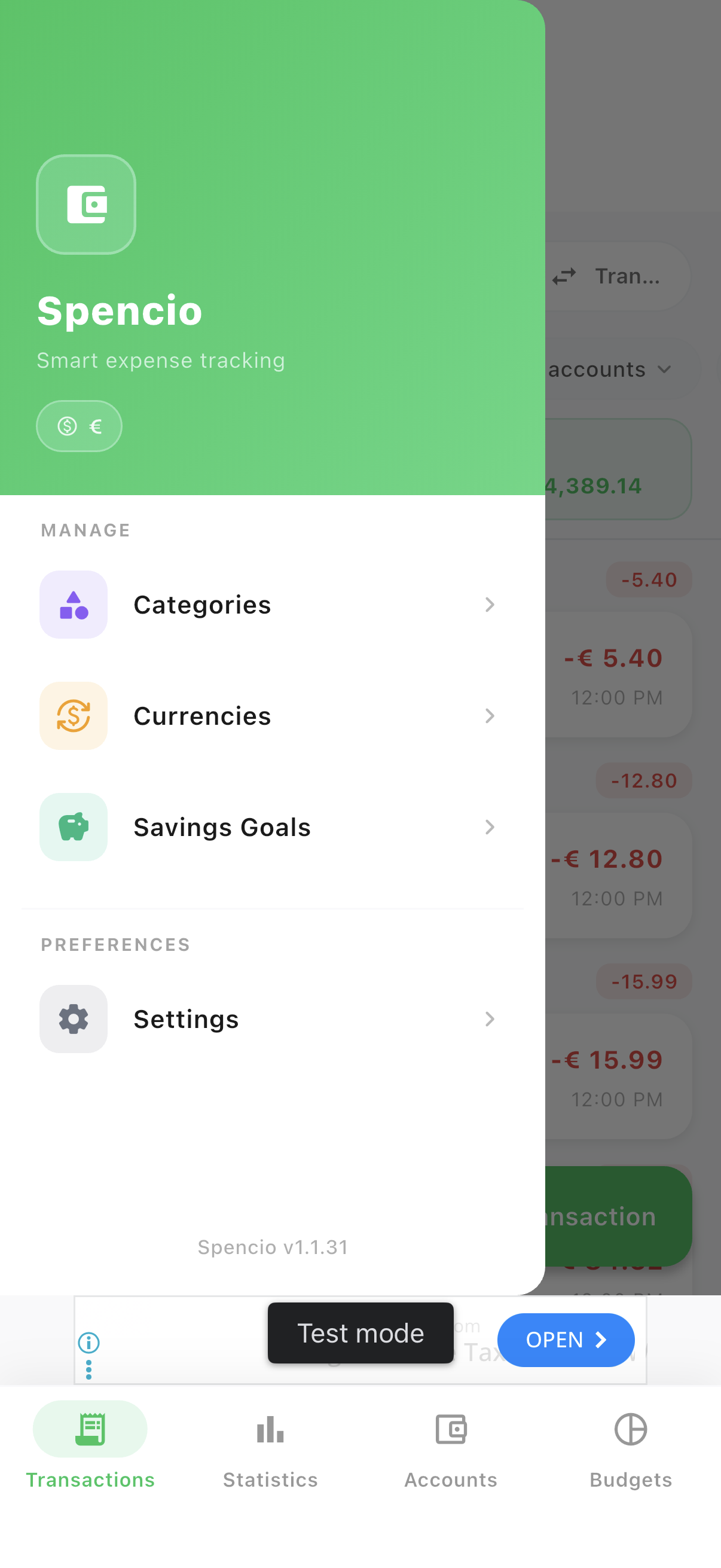
Categories live in the menu, alongside Currencies and Savings Goals.
- 1Tap the ☰ icon in the top-left corner from any main tab to open the menu.
- 2Tap "Categories".
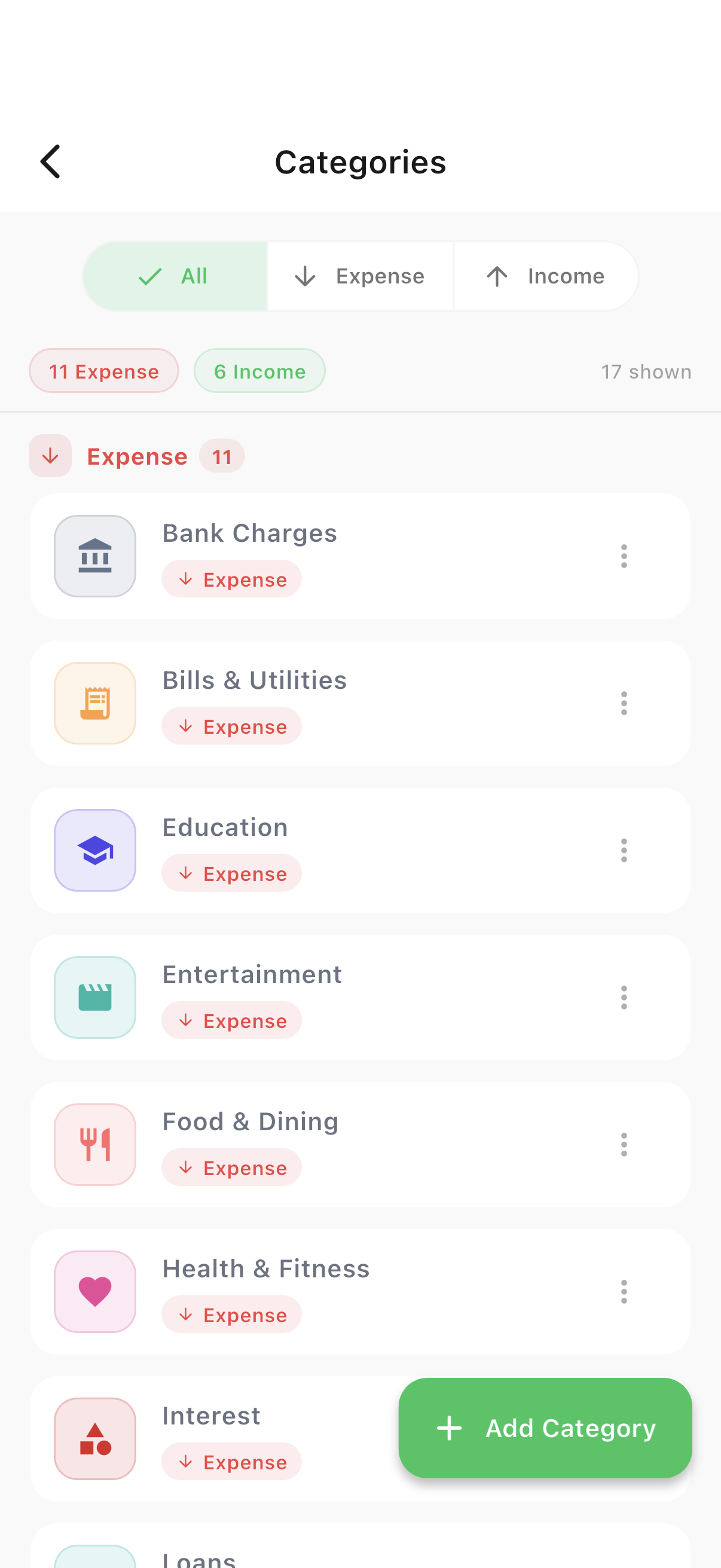
Filter
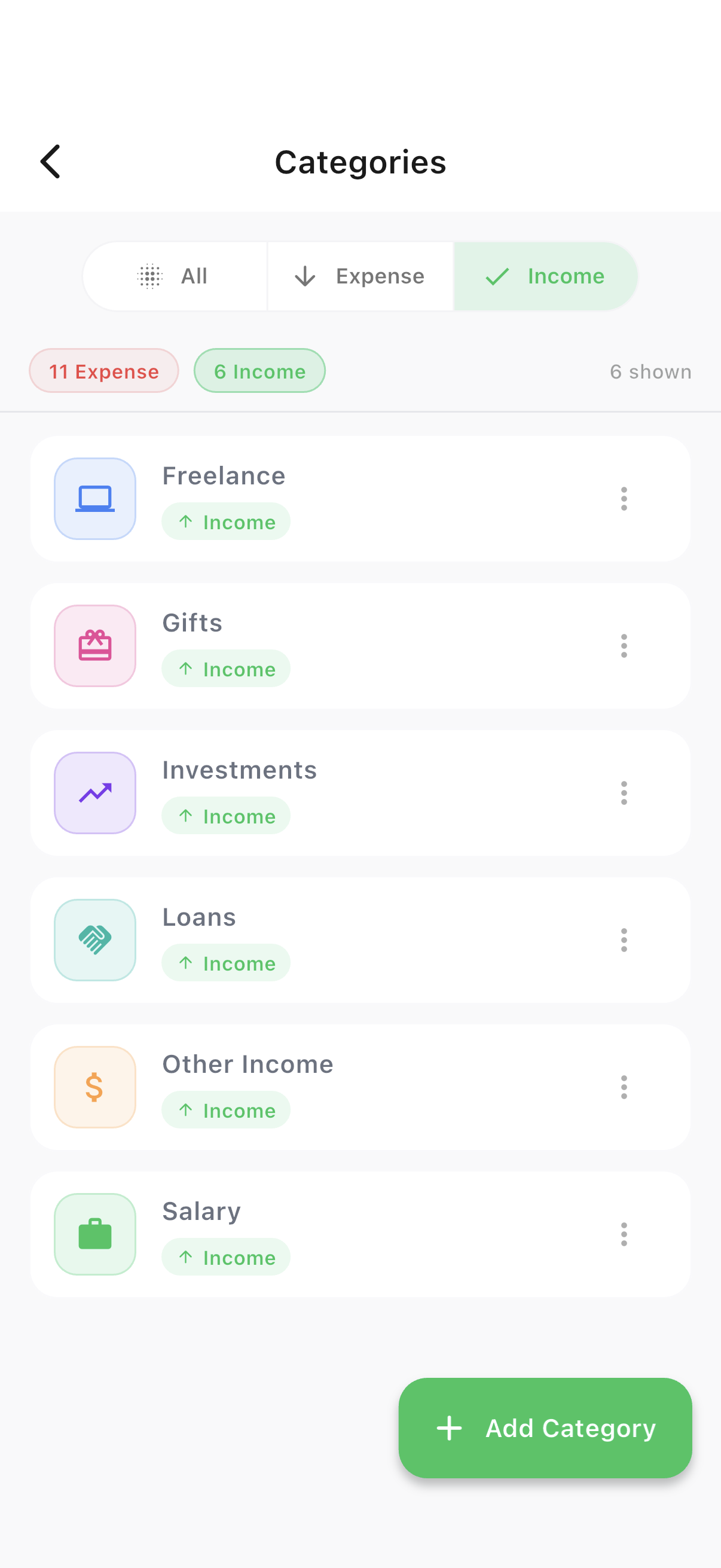
Switch between Expense and Income
The segmented control at the top filters the list without leaving the page.
- 1Tap "Expense" or "Income" to filter — or "All" to see everything.
Add
Add or edit a category
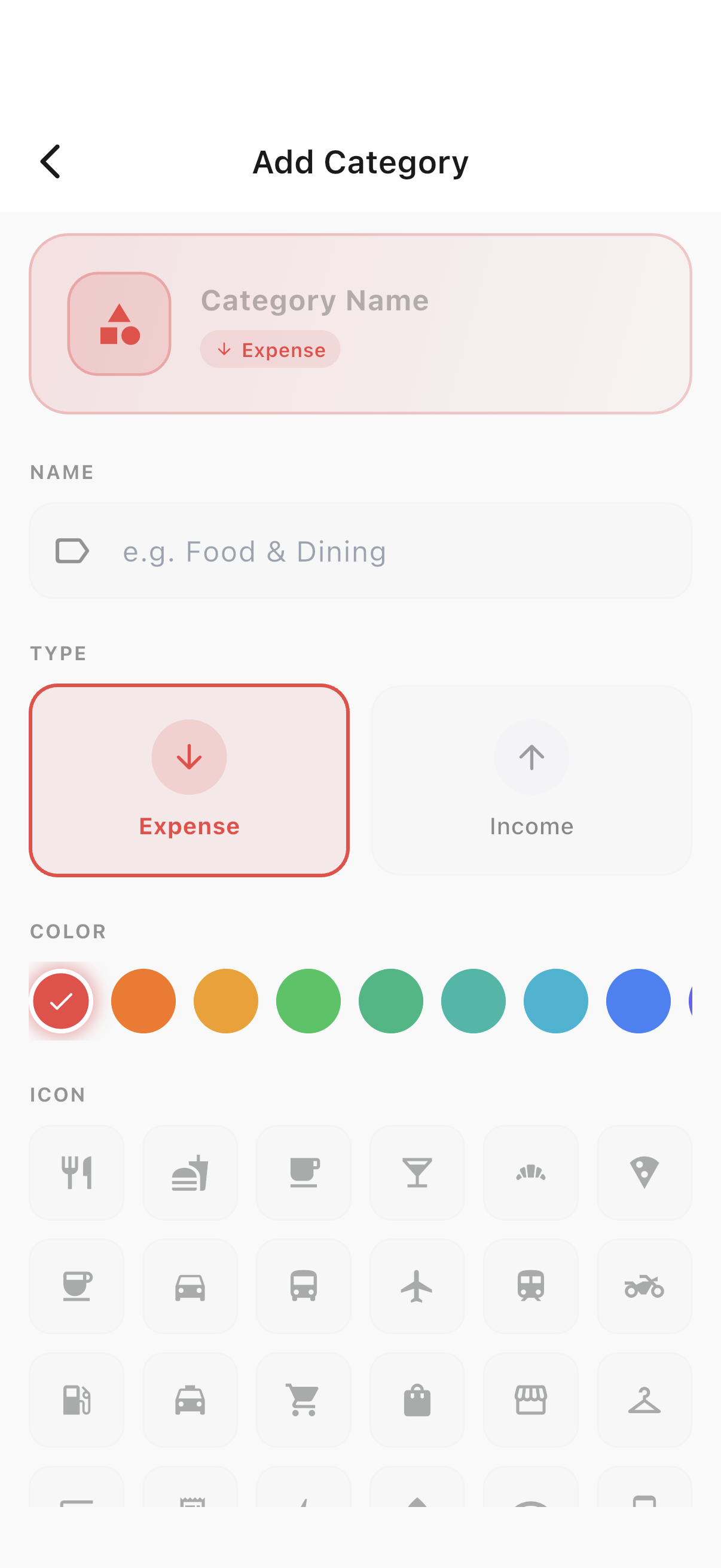
Every category gets a name, an icon from the built-in grid, and a color.
- 1Tap + to add a new category, or tap an existing one to edit or deactivate it.
Ready to try it yourself?
Spencio is free to download on iOS and Android — every feature in this guide is included.