Log expenses, income & transfers
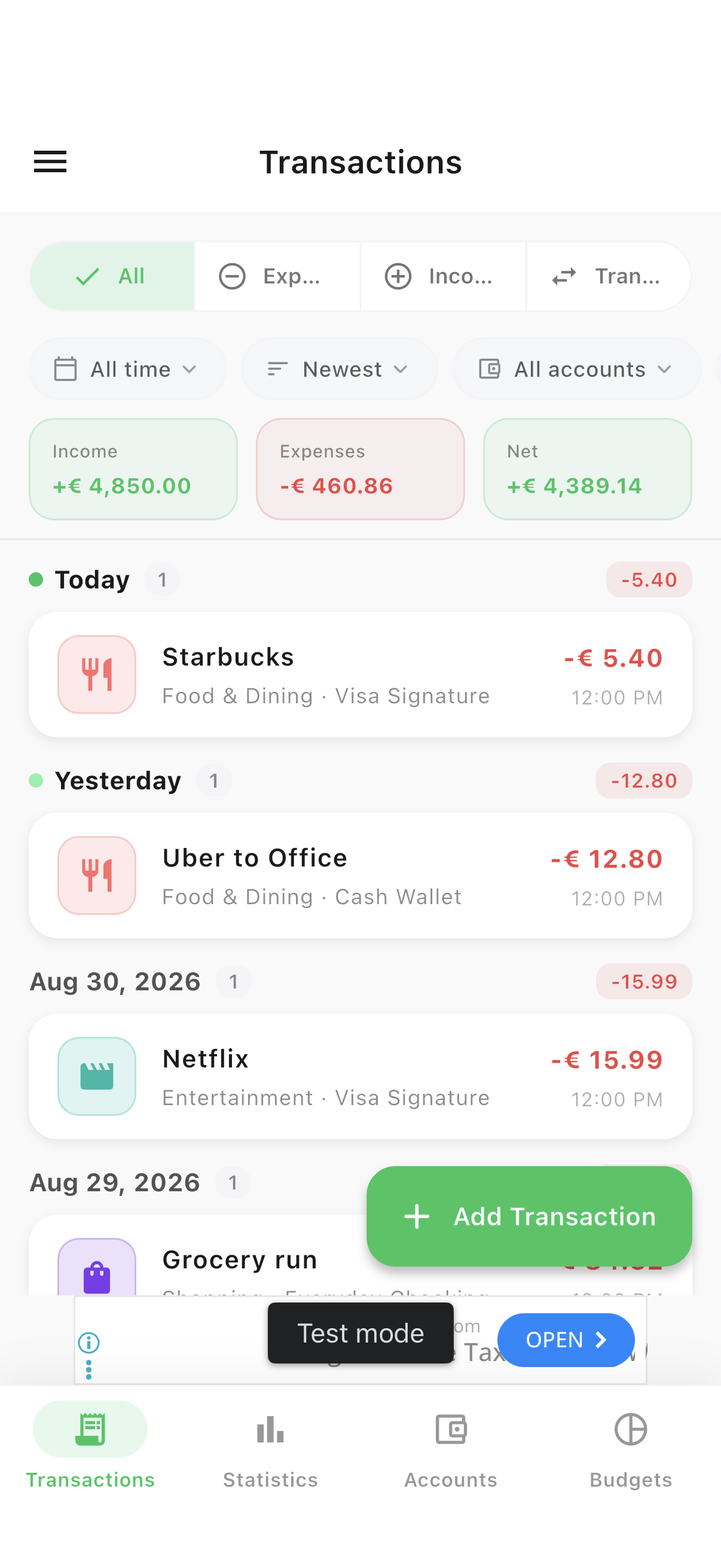
The Transactions tab is home base — every expense, income entry and account transfer you record shows up here, grouped and color-coded so you can scan your activity at a glance.
Every transaction, at a glance
Income, expenses and net totals for the current view sit right above the list, so you always know where you stand before you start scrolling.
- 1Open the Transactions tab from the bottom navigation.
- 2Use the All / Expense / Income / Transfer filter to narrow the list.
- 3Layer on date range, sort order, or a specific account with the filter chips underneath.
Tap any transaction for the full picture
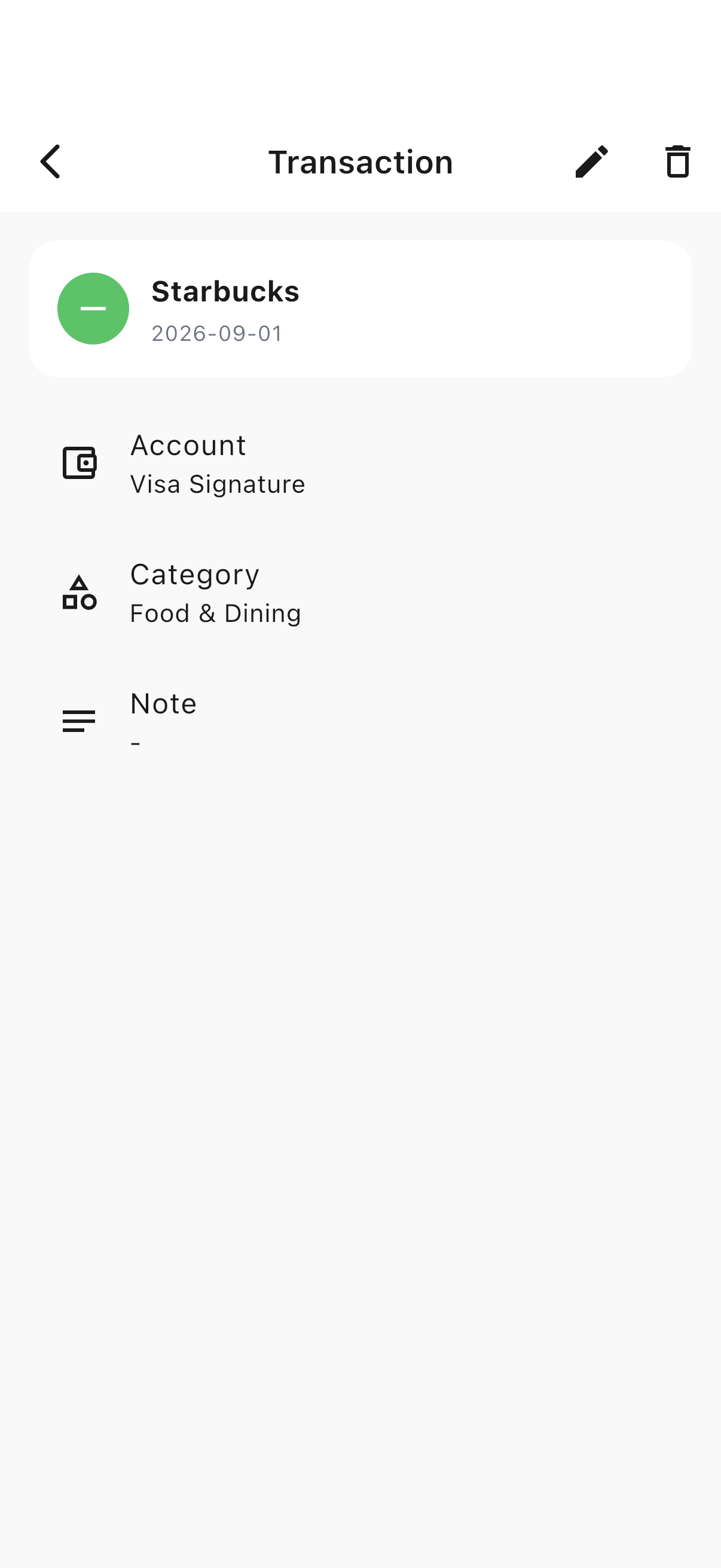
Every entry keeps a record of which account it hit, which category it belongs to, and any note you added.
- 1Tap a transaction in the list to open its detail view.
Log an expense in a few taps
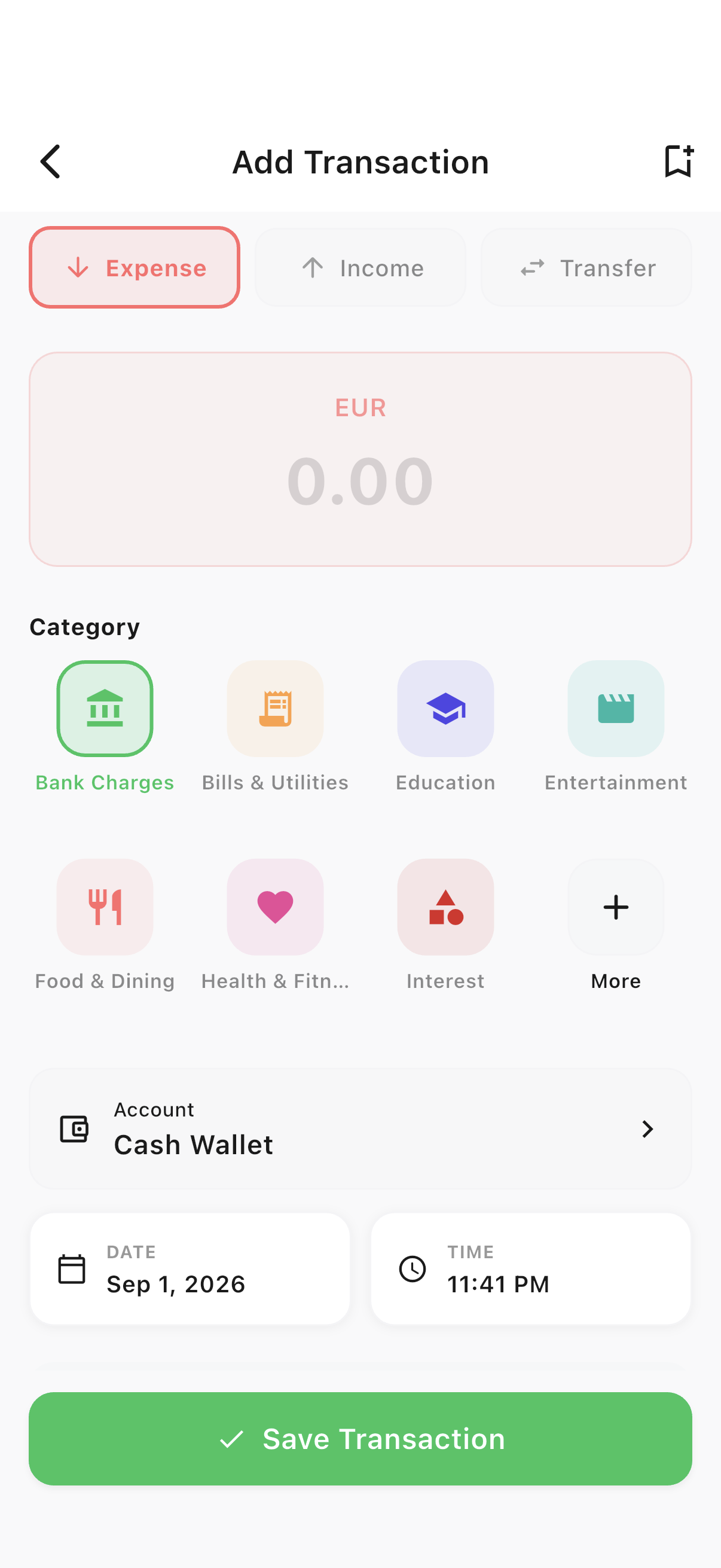
The add-transaction sheet defaults to Expense, with a category icon grid front and center.
- 1Tap the green "Add Transaction" button (or the + on the Transactions tab).
- 2Enter the amount, pick a category from the icon grid, and confirm the date, time and account.
- 3Add an optional note, then save.
Log income just as fast
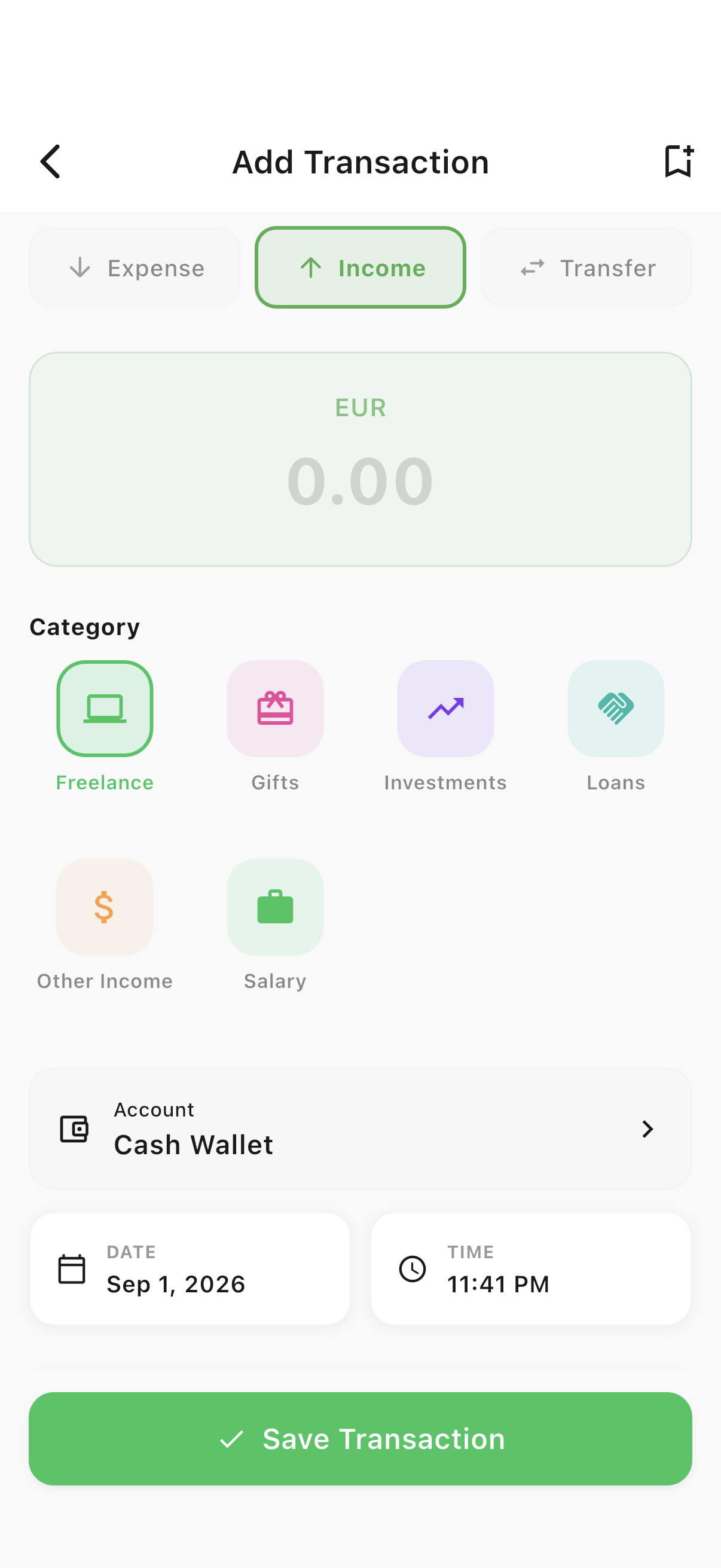
Switch the type segment to Income and the same form adapts — income categories instead of expense ones.
- 1From the add-transaction sheet, tap the "Income" segment at the top.
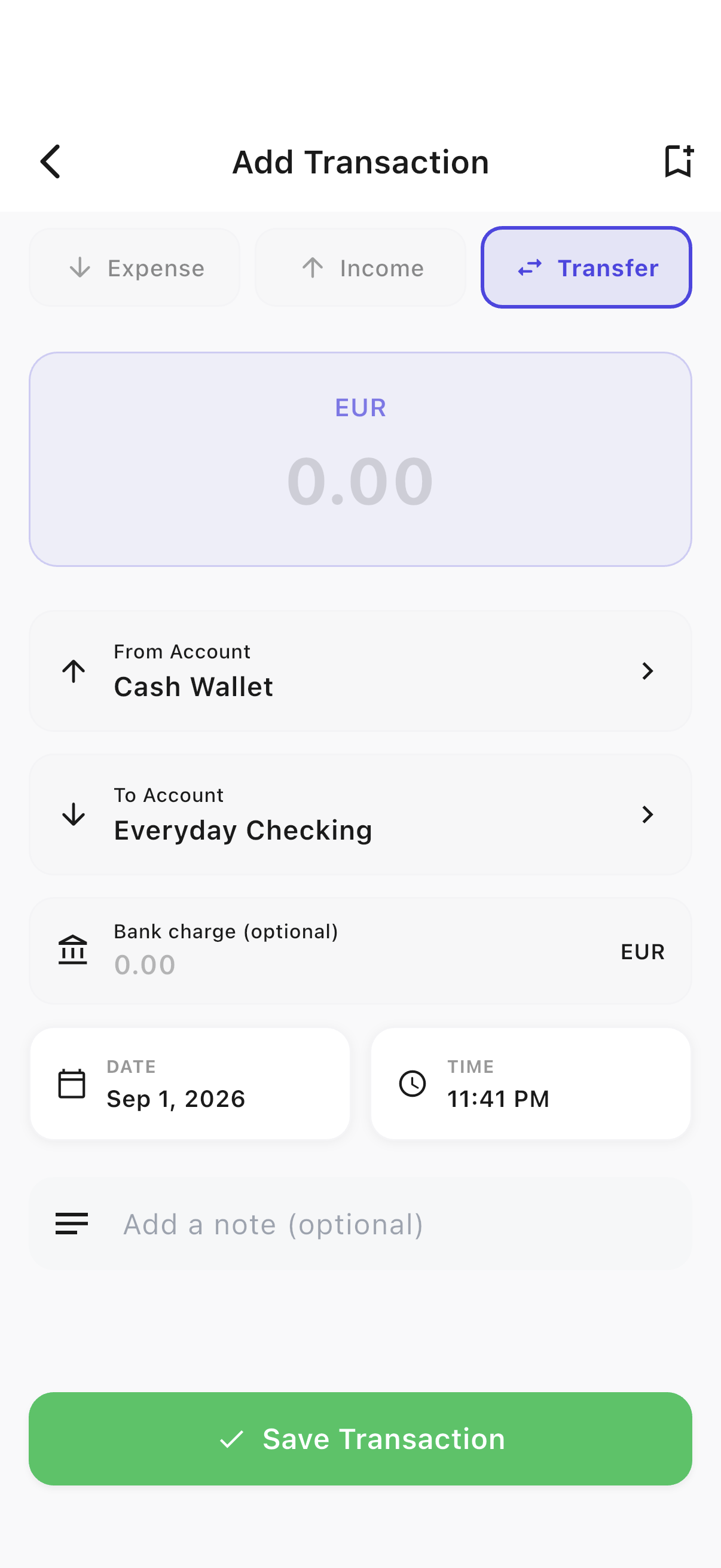
Move money between your own accounts
A transfer doesn’t touch your income/expense totals — it just moves a balance from one of your accounts to another.
- 1Tap the "Transfer" segment, then choose the source and destination accounts.
Ready to try it yourself?
Spencio is free to download on iOS and Android — every feature in this guide is included.